


Step 1: Install the required Module
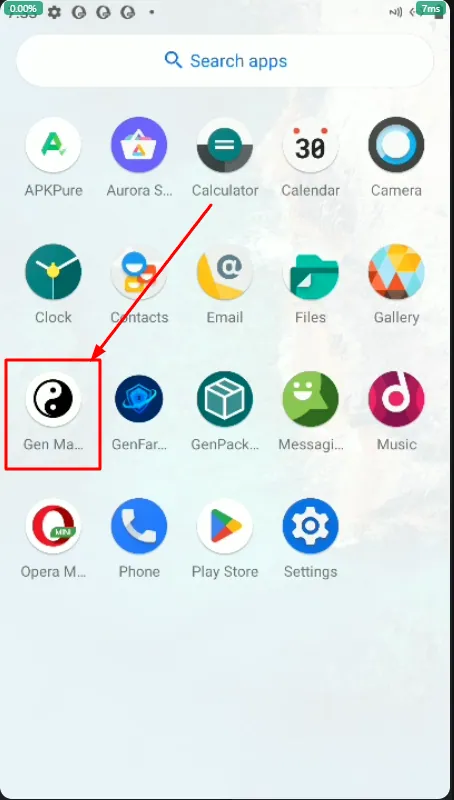
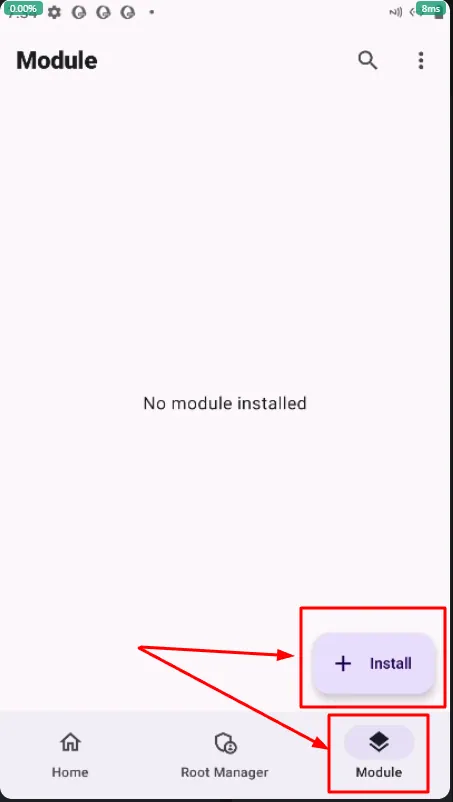
Open App Gen Manager and select Module.
Choose the Module you want to use, such as Modules for frame rate optimization, environment simulation, and more, then select Download/Install.
Step 2: Reboot the Cloud Phone
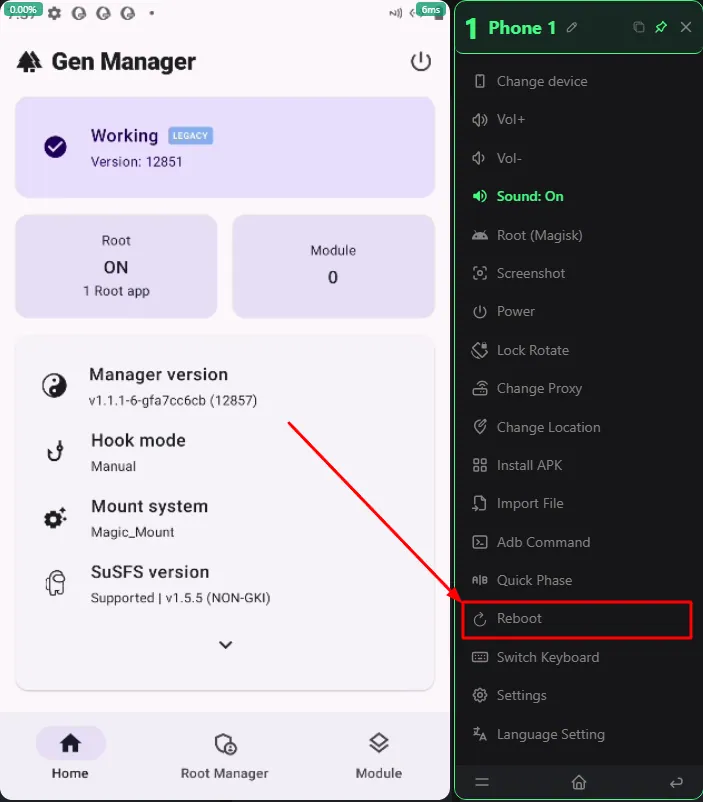
Once the system confirms that the Module has been installed successfully, Reboot the Cloud Phone so the system can update and load the new Module.
Step 3: Clear the cache
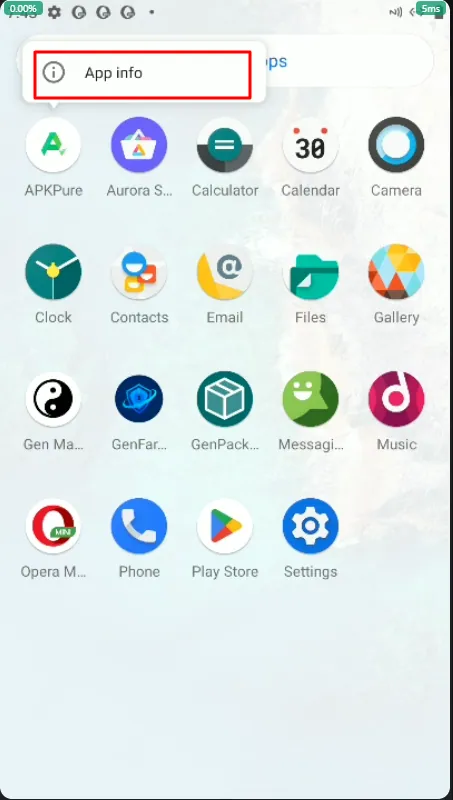
After the Cloud Phone restarts, press and hold the app/game you want to run, then select App Info.
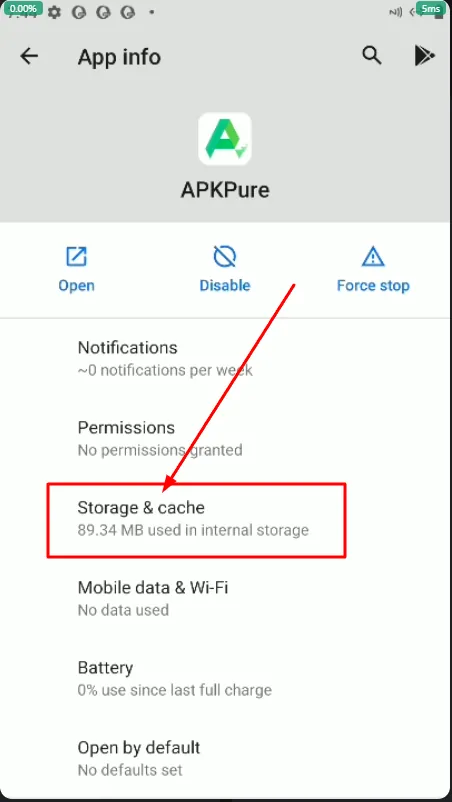
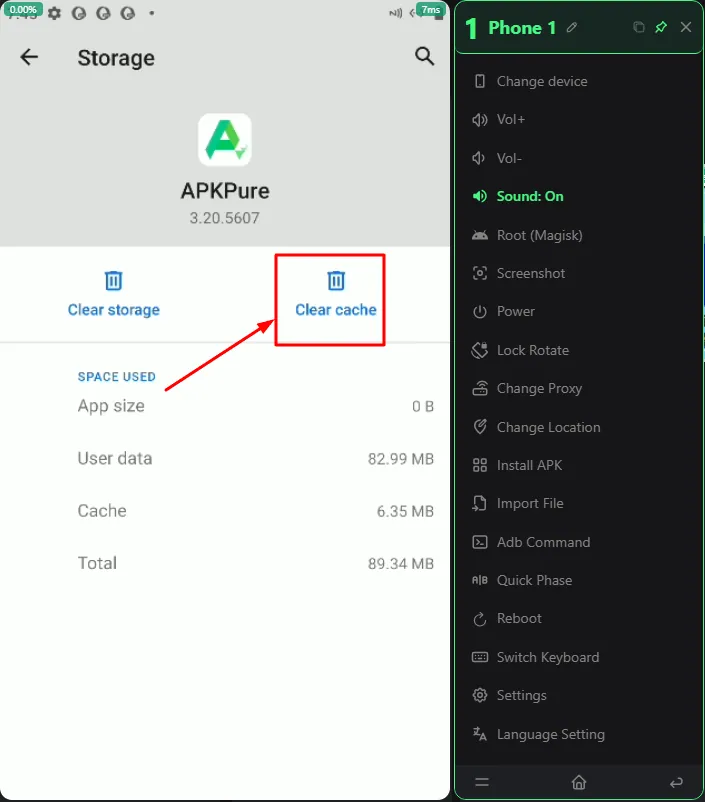
Go to Storage & Cache and tap Clear Cache.
Step 4: Test the Module
Reopen the app and check whether the Module’s features are working properly.
⚠️ IMPORTANT NOTES
Back up your data: Always make sure important data is saved before installing any new Module.
Troubleshooting: If you accidentally install an incompatible Module and the Cloud Phone becomes unresponsive, you can use the Reset/Renew Instance function in the GenPlay Cloud Phone management interface to restore the device to its original state.
Join the GenPlay Discord to claim a free trial device, or email [email protected].