


1. Set Up Your GenPlay Cloud Phone
Step 1: Visit Genplay and log in to your account.
Step 2: Create a Cloud Phone to run Roblox.
If you don't have a device yet, check out: How to Buy and Renew a Cloud Phone on GenPlay.
Step 3: Open your Cloud Phone and prepare to install the game.
2. Install DeltaX and Launch Ride A Pet
Step 1: Download and install DeltaX on your Cloud Phone.
Step 2: Open DeltaX and log in to your Roblox account.
Step 3: Search for Ride A Pet on Roblox and join the game.
3. Add the Ride A Pet Auto Farm Script
Step 1: Once you're in Ride A Pet, open the DeltaX script executor.
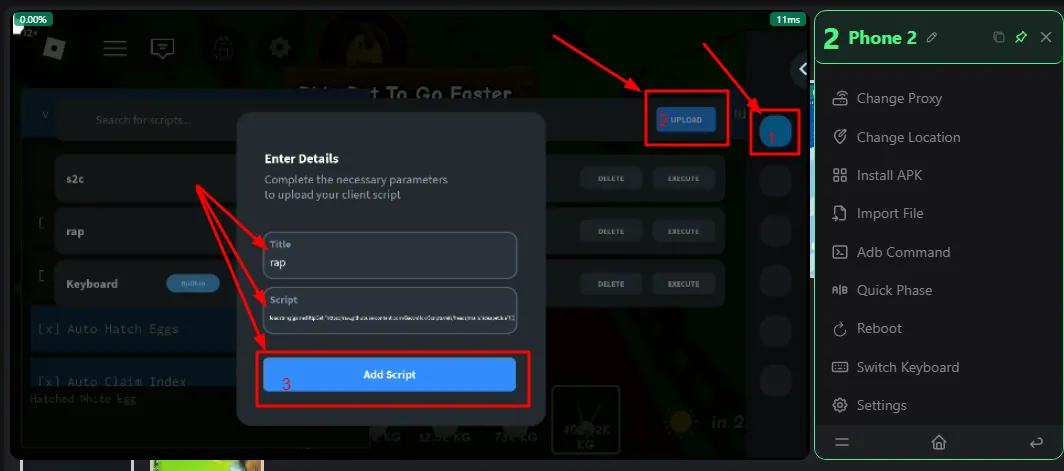
Step 2: Tap Upload to add a new script.
Step 3: Enter a script name (e.g., rap) and paste the following code into the Script field:
loadstring(game:HttpGet("https://raw.githubusercontent.com/Bac0nHck/Scripts/refs/heads/main/rideapet.lua"))()Step 4: Tap Add Script to save it.
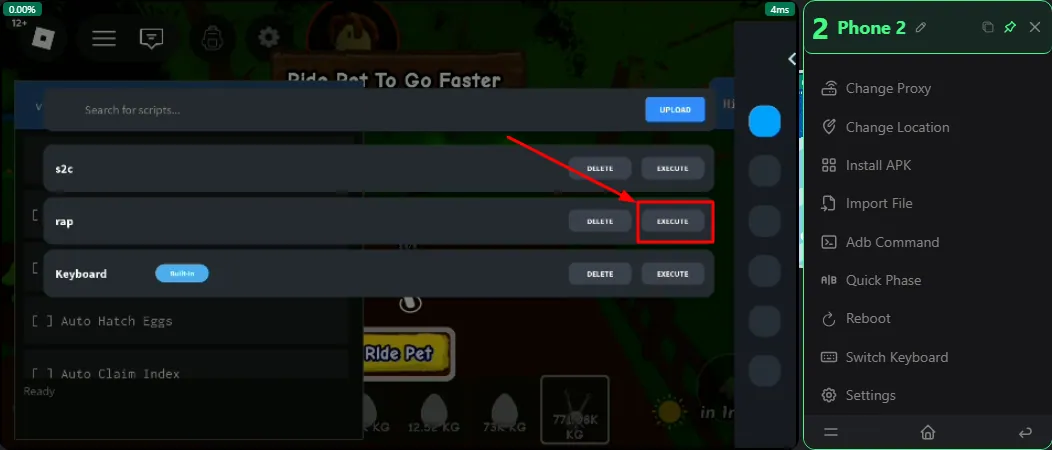
Step 5: Find rap in your script list and tap Execute to run it.
Once the script runs successfully, the Ride A Pet Auto Farm control panel will appear in the game.
4. Enable Ride A Pet Auto Farm
Open the script menu and enable the features you need:
Auto Collect Eggs: Automatically collects eggs.
Auto Place Eggs: Automatically places eggs.
Auto Hatch Eggs: Automatically hatches eggs.
Auto Claim Index: Automatically claims Index rewards.
Collection Priority: Adjusts egg collection priority.
Flight Speed Adjustment: Adjusts your character's flying speed.
Collection Range Adjustment: Adjusts the egg collection range.
For automated farming, enable Auto Collect Eggs, Auto Place Eggs, Auto Hatch Eggs, and Auto Claim Index together.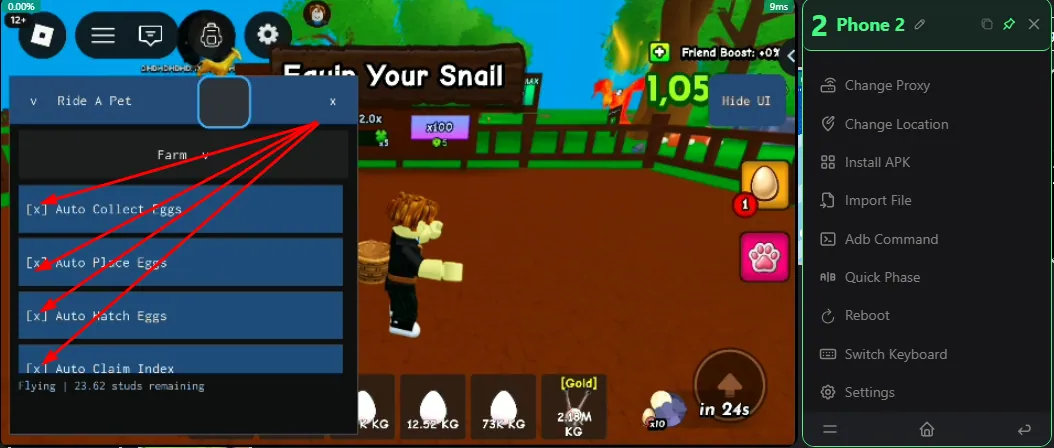
5. AFK Farm Ride A Pet 24/7 on GenPlay
After configuring the script:
Make sure the Auto Farm features are working.
Keep Roblox and Ride A Pet running on your Cloud Phone.
Close the GenPlay control interface on your phone or computer.
Ride A Pet will continue running on your Cloud Phone after you disconnect from the control interface, as long as the cloud device and game remain active.
You can reconnect to GenPlay anytime to check your farming progress.
Note: Third-party scripts may stop working after game updates, contain security risks, or violate Roblox/game rules. Only use trusted sources and consider the risks to your account.
GenPlay Cloud Phone lets you AFK farm Ride A Pet on a cloud device without keeping your personal phone turned on.
Join the GenPlay Discord to claim a free trial device, or email [email protected].